MEDICAL DISPLAY APPLICATIONS
Medical Display Applications
Explore display and image-processing configurations for endoscopy, operating-room, and medical video workflows. Start with the video source, signal interface, viewing requirements, and display role to identify a suitable SOINVISION configuration.
- Match source resolution and signal interfaces with the inputs available on the selected display.
- Choose 27-, 32-, or 43-inch displays according to viewing distance, mounting position, and how the display will be used.
- Compare standard 4K display, integrated image enhancement, and external image-processing options.
APPLICATION OVERVIEW
Application Overview
Start with the application environment and viewing requirements, then consider the video source, signal connection, display role, and any image-processing needs.

1
Endoscopy Room Display
Display configurations for endoscopy rooms, carts, and procedure spaces.
- 27- and 32-inch viewing options
- Video-source and interface requirements
- Optional image processing or secondary output

2
Operating Room Visualization
Display options for primary, secondary, and shared viewing in operating-room environments.
- 27-, 32-, and 43-inch display options
- Viewing distance and mounting position
- Primary, secondary, and shared display roles

3
Medical Video Integration
Plan how video sources, signal interfaces, displays, and additional outputs fit together.
- HDMI, DisplayPort, DVI, and SDI by model
- Primary and secondary display requirements
- Optional external image processing

4
Hybrid OR Display
Display considerations for mixed imaging and surgical visualization environments.
- Large-format viewing options
- Multiple compatible video sources
- Display selection based on viewing role

5
Interventional Suite
Display considerations for environments where multiple medical video sources may need to be viewed within the same room.
- Source and interface requirements
- Primary or shared viewing roles
- Display sizing based on room and viewing position

6
Display Size & Viewing Roles
Match 27-, 32-, and 43-inch displays to the way images need to be viewed within the setup.
- Close-viewing and cart-based setups
- Primary, secondary, or shared viewing
- Large-format room viewing
FEATURED APPLICATION
Endoscopy Room Display
For endoscopy workflows, display selection begins with the video source, signal interface, viewing position, and the role of the monitor within the procedure setup.

Video Presentation
Match the source resolution and display capability to present endoscopic video clearly and consistently.

Display Size & Viewing Role
Choose a 27- or 32-inch display according to viewing distance, mounting position, and whether the monitor serves as the primary viewing display.

Signal & Interface Compatibility
Confirm the required HDMI, DisplayPort, DVI, or SDI connection against the selected display model and video source.

Optional Processing & Output
External image processing or an additional output to a compatible recorder or second display can be considered when required by the setup.
Typical Fit
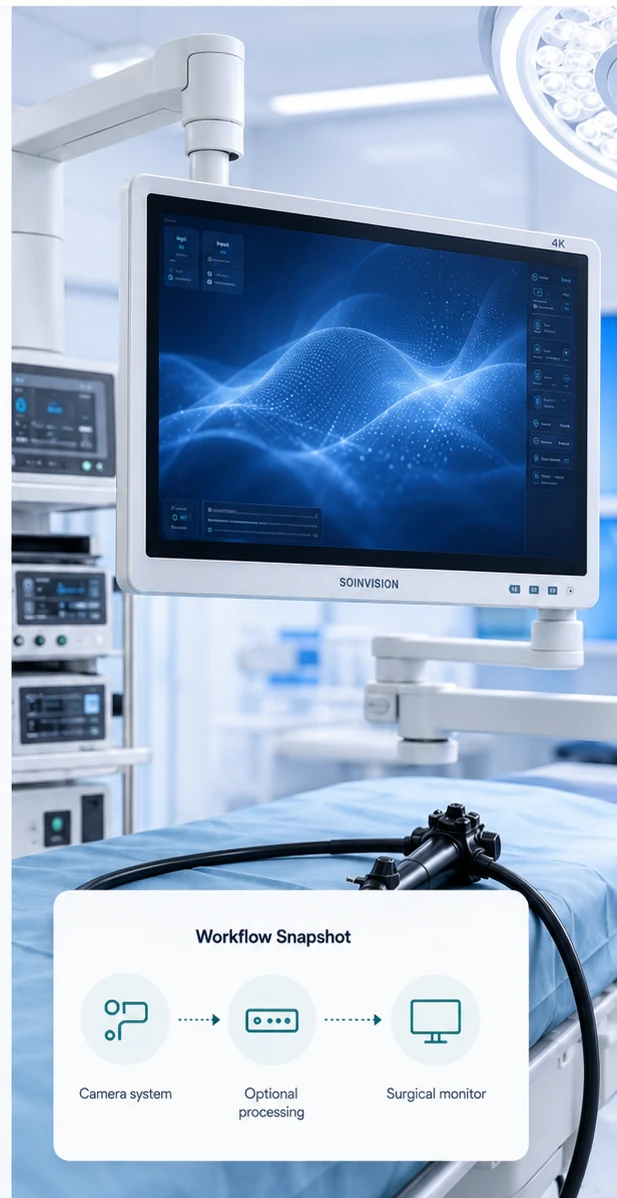
Workflow Snapshot

Video Source
Endoscopic camera system or video processor

Optional Image Processing
External processing when required

Surgical Display
Selected according to source, size, interface, and viewing role
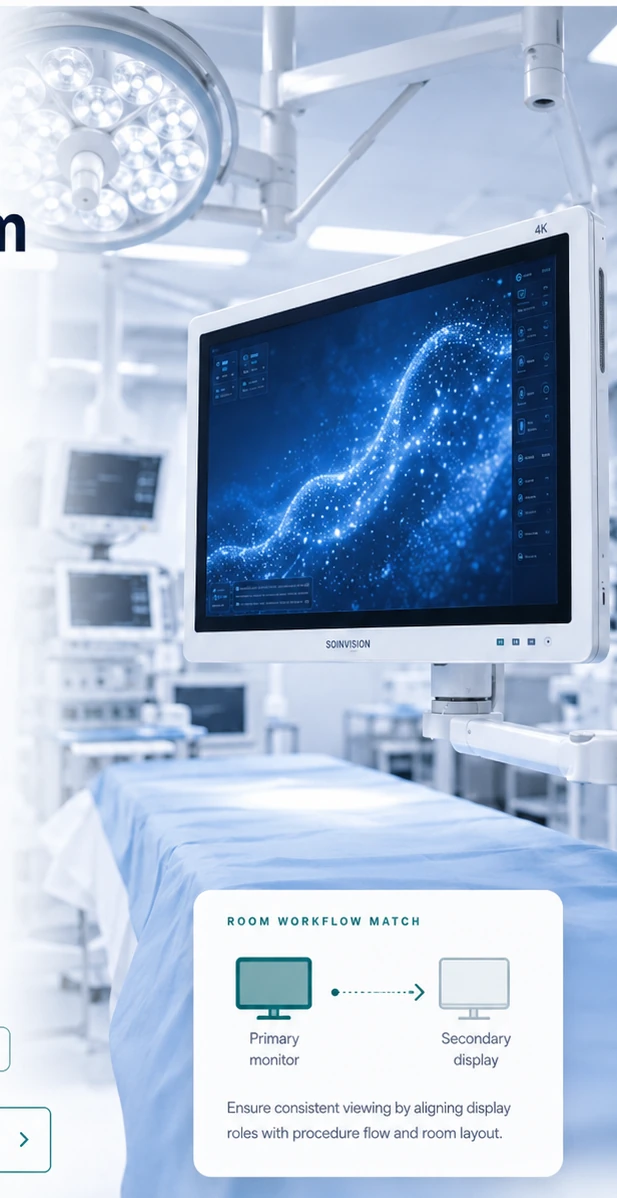
Viewing Roles
Primary Display
Main surgical video viewing position


Secondary Display
Additional viewing position where required

Shared / Room Viewing
Larger-format display for visibility from greater viewing distances
FEATURED APPLICATION
Operating Room Visualization
Operating-room display selection depends on viewing distance, mounting position, display role, and where different members of the team need to see the image.
Primary, Secondary & Shared Viewing
Define whether each display is intended for primary viewing, secondary reference, or shared room viewing.
Display Size & Viewing Distance
Select 27-, 32-, or 43-inch displays according to viewing distance, installation position, available space, and the role of the display.

Room Layout & Mounting
Consider mounting position, viewing direction, line of sight, and visibility from the intended viewing locations.
Additional Output & Processing
A second display, compatible recorder, or external image-processing device can be considered when the selected workflow requires additional output or enhancement.
Typical Fit
APPLICATION WORKFLOW
Medical Video Display Integration
SOINVISION focuses on the display and image-processing side of medical video workflows, helping match video sources, interfaces, displays, and compatible additional outputs.
01

Camera System / Video Source
Start with the endoscopic camera system, video processor, or other compatible medical video source. The source resolution and available outputs help determine which display connections are required.
02
Optional Milestone S
Add external image processing when enhancement is required before the video signal reaches the display. Milestone S provides an external processing option rather than processing integrated into the monitor.
03
SOINVISION Display
Select NEXARA or NEXARA X according to screen size, source connection, viewing role, and image-processing requirements.
04
Recorder / Second Display
A compatible recorder or second display can be added when the selected model provides the required video output.
Signal Interface Check
Confirm HDMI, DisplayPort, DVI, or SDI requirements according to the source equipment and selected display model.
Output Requirements
Identify any second-display or recorder connection before the final display configuration is selected.

Recommended Configuration
Match the display series, screen size, and optional image-processing platform to the requirements of the application.
DISPLAY SELECTION
How SOINVISION Matches a Display to Your Application
We start with the video source and intended display role, then confirm connection requirements, screen size, viewing conditions, and image-processing needs.
01
Identify the Video Source
Share the source device, output resolution, signal interface, and intended application.
02
Define the Display Role
Confirm whether the display is intended for primary, secondary, or shared viewing, together with the expected viewing distance and mounting position.
03
Confirm Interfaces & Outputs
Check the required inputs against the selected model and identify any second-display or recorder output requirements.
04
Match Display & Processing
Select the appropriate SOINVISION series, screen size, and image-processing configuration for the application.
Typical Medical Video Workflow
Video Source
Endoscopic camera system, video processor, or another compatible medical video source.

Signal & Interface
HDMI, SDI, DVI, or DisplayPort according to the source and display model.

Display Role
Primary, secondary, or shared viewing.

Optional Output
Compatible recorder, second display, or another required video-output connection.
SOINVISION APPLICATIONS
Application & Integration FAQ
Can I use an existing Full HD video source with a 4K SOINVISION display?
Yes, compatible Full HD video sources can be used with SOINVISION displays when the source signal and interface match the selected model. NEXARA and NEXARA X both support 1080p-to-4K processing. This can improve the presentation of a Full HD source on a 4K display, but it does not turn Full HD acquisition into native 4K capture.
Can one SOINVISION display show more than one video source?
Yes. SOINVISION displays support PIP, PBP, and multi-window viewing modes for compatible video sources. The available layout and connection method should be confirmed according to the selected model and source interfaces.
How do I choose between NEXARA and NEXARA X?
NEXARA provides the core 4K medical display platform for applications that require high-resolution visualization, flexible signal connections, and multi-view display functions. NEXARA X adds integrated S-VIXTA image-enhancement technology for applications that require additional image-processing capabilities within the display.
When should Milestone S be considered?
Milestone S can be considered when external image processing is preferred or required within the video workflow. Unlike NEXARA X, where S-VIXTA processing is integrated into the display, Milestone S is a separate image-processing platform that can be positioned before the monitor in the signal chain.
What should I confirm before connecting a recorder or second display?
Check the required output interface and signal format against the selected display model and the connected equipment. Available outputs vary by model, so recorder and second-display requirements should be confirmed before the final configuration is selected.
Tell Us About Your Display Setup
Share your video source, resolution or signal interface, intended display role, preferred screen size, mounting setup, and any image-processing or additional output requirements. Our team can recommend a suitable SOINVISION display and image-processing configuration for your application.