

Disclosure: SOINVISION publishes this guide. We make surgical monitors and video processors, two of the device types discussed below.
If you want a clearer endoscopic image, start by working out what kind of “unclear” you are looking at, before you think about a new system. Many hospitals and clinics use the same endoscopy tower for years, and replacing the whole system is a large purchase. When surgeons say the picture is not clear, they often mean one of three things. The image looks foggy or gray. Small vessels and tissue layers are hard to tell apart. Or near and far areas are not sharp at the same time.
Each of these problems starts at a different point in the video chain. Some fixes cost nothing. Others need equipment. This guide works through them in that order. It ends with the upgrade paths available when the free fixes are not enough.
Table of Contents
Quick Guide: What You See and Where to Start
| What you see | Possible causes | Check first |
|---|---|---|
| Blurry image | Dirty optics, focus, damaged scope | Clean the optics, refocus, try another scope |
| Wrong or odd colors | White balance, monitor settings | White-balance again, check the monitor’s color mode |
| Dark or dim image | Light cable, light source settings | Check the cable for dark spots, check the light level |
| Grainy image | Gain or enhancement settings on the camera unit | Return settings to your usual values |
| Foggy or gray image | Lens fog, smoke, remaining haze | See the section on fog below |
| Vessels and tissue layers hard to separate | Color, light, contrast | See the section on vessels below |
| Near and far not sharp together | Depth of field, focus | See the section on depth of field below |
| No picture or wrong picture | Monitor input, cables | Match the input to the cable, reseat connectors |
Change or rule out one component at a time. If the same problem appears with a different scope or a different monitor, you have narrowed down where it starts.
Where Image Quality Gets Lost in the Video Chain
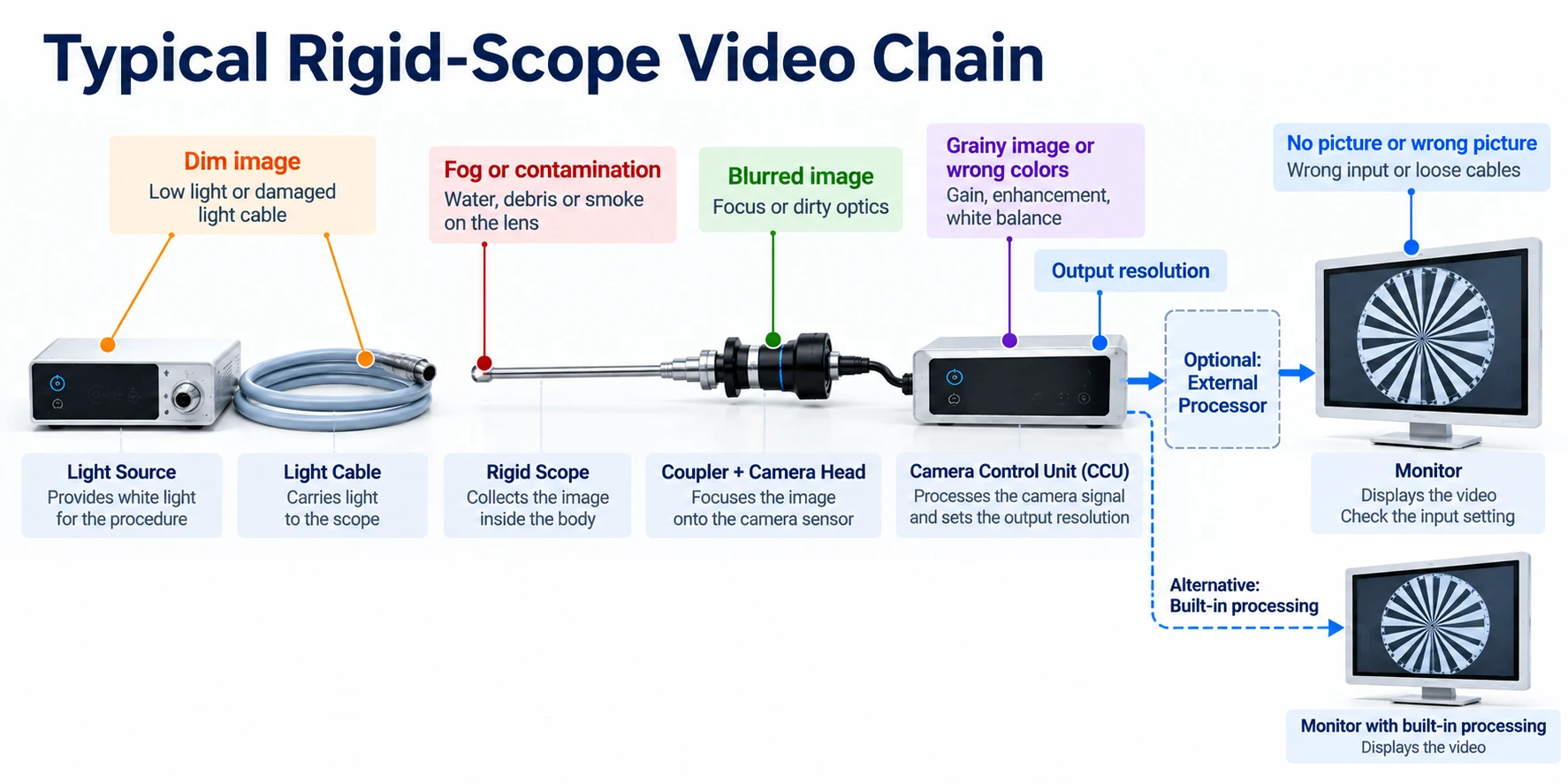
An endoscopic image passes through several devices before you see it. In a typical rigid-scope system, such as a laparoscopy tower:
- The scope collects the image inside the body.
- The light source and light cable carry light to the scope.
- The camera head sits on the scope’s eyepiece. A coupler, the optical piece between scope and camera, focuses the image onto the camera’s sensor.
- The camera control unit (CCU) is the box on the tower that turns the camera signal into video. It is sometimes called the camera processor.
- The monitor displays that video.
Many flexible endoscopes work differently. The image sensor sits at the tip of the scope, so there is no separate camera head or coupler. The video still passes through a processor and out to a monitor, so the later checks in this guide still apply.
A problem at any point in the chain can make the final picture worse. A better monitor cannot fix a dirty lens, and a clean lens cannot fix a monitor set to the wrong input, so check each part in order.
Start With the Checks That Cost Nothing
Before you replace anything, go through these checks. Most of them come from the SAGES Laparoscopy Preparation and Troubleshooting Guide, a free guide from the Society of American Gastrointestinal and Endoscopic Surgeons. It is worth printing for the operating room.
- Clean optics. A dirty or scratched scope cannot give a sharp image. Check the scope tip, the eyepiece and the coupler window. Clean them the way the manufacturer’s manual describes.
- Focus. SAGES lists an out-of-focus camera as one cause of blur. The fix is the focus ring on the camera or coupler. Refocus whenever you change scopes.
- White balance. White balance tells the camera what “white” looks like under your light source. If it is wrong, every color on screen shifts. SAGES lists color problems as a reason to white-balance again. The light must be on while you do it.
- Light cable. A light cable is a bundle of thin glass fibers. Broken fibers show up as dark spots on the cable’s end, and less light reaches the scope. SAGES recommends checking for these spots. Follow your cable manual for how to check, and never look straight into a cable connected to a light source that is switched on.
- Camera settings. If the image looks grainy, SAGES suggests checking the enhancement and gain settings on the CCU. Gain brightens the signal electronically, but it also adds grain. Settings are easy to change by accident, and the next team then works with the changed settings.
- Monitor input and cables. A monitor set to the wrong input can show no picture or the wrong one. Check that the input matches the cable you are using, and that every connector is firmly seated.
SAGES and AORN also publish a one-page MIS safety checklist that includes checking lens clarity before surgery.
Why Does the Image Look Foggy or Gray?
A foggy or gray image has three common causes. Work through them in this order.
1. Fog or contamination on the lens. When a cool scope enters the warm, humid abdomen, water condenses on the lens. Debris, blood and smoke particles can also stick to it. One useful clue: if the haze clears after you wipe the lens, the lens is the likely source.
The fixes are physical: warming the scope, anti-fog solution, wiping the lens and keeping trocars (the ports that instruments pass through) clean. No single method has been shown to be best. In one randomized trial in 50 operations, heated sterile water led to fewer fogging events than anti-fog wipes in the first 30 minutes of surgery. This problem is common. In one study of 25 operations, the surgeon’s view was impaired for 37% of the operating time.
A Japanese patient-safety alert described burns caused by hot water prepared to warm the scope. During wound closure, the water was used by mistake to rinse skin or tissue. Keep anti-fog water clearly labeled and separate from irrigation fluids.
2. Surgical smoke. If the haze appears while energy devices (electrosurgical or ultrasonic instruments) are in use and fills the whole view, smoke is the likely cause. AORN, the US perioperative nurses’ association, lists reduced visibility as one effect of surgical smoke and recommends a smoke management system in minimally invasive surgery. Clearing the smoke comes first.
3. Haze that remains on screen. Sometimes the lens is clean and the smoke is cleared, but the image still looks flat and low in contrast. This is where digital defogging can help. It is video processing that raises contrast in hazy areas of the picture. It does not remove anything from the lens or the air, so it cannot replace steps 1 and 2.
Results vary between methods and between videos. In a 2026 pilot study of one AI smoke-removal method, half of the 20 clinicians disagreed that the processed video looked clearer. Judge any defogging feature on your own surgical video, not on demonstration images.
Why Are Small Vessels and Tissue Layers Hard to Tell Apart?
Start with the basics again. Wrong white balance, weak light or a dirty lens all reduce the color and contrast differences between tissues. Fix those first.
Beyond that, there are two different kinds of technology.
Optical methods change the light. Narrow band imaging (NBI) lights the tissue with narrow bands of blue and green light that hemoglobin absorbs strongly, so surface vessels stand out. It is used mostly in GI endoscopy, but laparoscopic use has been studied with a compatible scope, processor and light source. Indocyanine green (ICG) fluorescence needs an injected dye, a light source that makes the dye glow, and optics and a camera that can capture that glow. Neither method can be added to standard white-light video by a monitor or a processor. Both need the matching system.
Digital methods process the video. Reviews of endoscopic imaging treat post-processing as a separate category: the system works on the digital image to bring out vessel and tissue contrast, without changing the light. Because it works on the video signal, this kind of processing can be added to an existing system.
We did not find neutral research showing that general-purpose video processing improves recognition of small vessels or fascia in laparoscopy. So test vessel and tissue enhancement on your own cases before you rely on it.
Why Can’t I Keep Near and Far Areas Sharp at the Same Time?
Every lens has a depth of field: the range of distances that look acceptably sharp. Anything closer or farther than that range looks soft. Depth of field depends on the lens design, the working distance and the aperture (the size of the lens opening). On most scopes you cannot change the aperture, so the practical controls are distance and focus.
In practice:
- Refocus when you move closer to or farther from the tissue.
- Check that the coupler focus is set correctly for the scope in use.
- Some newer systems use extended depth of field (EDOF) optics, which combine near and far focus images into one. This needs specific scopes and processors.
Digital depth of field enhancement is a different thing. It processes the video so that areas slightly in front of or behind the focus look sharper. It does not extend the scope’s optical focus range, it cannot recover detail lost to defocus, and it does not replace correct focusing.
You may also hear that 4K cameras have a shallower depth of field than HD cameras. We did not find a direct, controlled comparison that settles this, so we would not plan a purchase around it.
Is the Problem Resolution?
Sometimes it is. A 1080p (Full HD) camera connected to a 4K monitor still produces a 1080p image. The monitor upscales it to fill the screen. Upscaling calculates extra pixels from the existing ones. It does not add information the camera did not capture. Native 4K needs 4K image capture and a video path that carries 4K all the way to the display. In a typical rigid-scope system, that means a 4K camera head and a 4K CCU.
The clinical evidence for 4K over HD is mixed and depends on the task. We cover the details in 4K vs Full HD Surgical Monitors: What Actually Differs and When It Matters.
Three Upgrade Paths for Better Endoscopic Video
If the free checks are done and the image still falls short, first ask where the remaining problem starts. If it starts in the optics, such as a damaged scope or a failing light cable, repair or replace that part. No processing downstream can fully make up for it. If the optics are sound and you want more from the video, there are three paths. We found no study that compares them directly, so the choice depends on what your system needs.
| Path | What changes | When it fits | Check before buying |
|---|---|---|---|
| Upgrade the imaging system | Depends on the goal: camera head and CCU for native 4K; matching light source, scopes, camera and CCU for NBI or ICG; often the monitor too | You need native 4K, or optical features such as NBI or ICG | Which parts the target technology needs, and compatibility with what you keep |
| Replace the monitor with one that has built-in processing | The monitor only | Your monitor is old or failing and needs replacing anyway | The monitor’s inputs match your CCU’s output |
| Add an external processor between the CCU and the monitor | Nothing is replaced; one device is added | Your monitor still works and you want to keep the system as it is | Your CCU’s output type and resolution, cabling and space on the tower |
Upgrading the imaging system is usually the largest purchase of the three, though the real cost depends on the configuration. The other two paths keep your current camera and scopes. If you are replacing the monitor, How to Choose a 4K Surgical Monitor for Endoscopy and OR Workflows goes through inputs, screen size and viewing distance.
Check the Connection First
For the second and third paths, look at the back of your CCU. Its output decides what you can connect.
- SDI uses a round BNC connector. The connector looks the same for different SDI versions, so check the label or the manual. 3G-SDI commonly carries video up to 1080p at 60 frames per second. 12G-SDI can carry 4K at 60 frames per second on a single cable.
- HDMI capability depends on the version. HDMI 2.0, for example, supports 4K at 60 frames per second. An older CCU may output less than the latest HDMI standard allows.
What to Note Down Before You Talk to a Supplier
Whichever path you consider, these details let any supplier tell you quickly what will work:
- The CCU make and model
- Its video output connectors (SDI, HDMI, DVI or others)
- The output resolution and frame rate, for example 1080p at 60 frames per second
- The monitor make, model, size and inputs
- Whether you use a recorder, a second monitor or a video router in the chain
- Which of the problems in the quick guide above you see most often
How to Judge the Result on a Trial
- Compare on and off. Switch the processing on and off on the same scene.
- Watch moving images. Look at instruments moving and the camera panning, not only still frames.
- Use your own video. Demonstration clips are chosen to look good.
- Look for artifacts. A sharper-looking image is not always a more accurate one. Strong sharpening can add bright halos along edges. Contrast and color processing can shift tissue colors. Noise reduction can smear fine texture, especially in motion. Check that what you see on screen still matches what is there.
- Start with a low setting. The CCU often applies some sharpening and noise reduction of its own. An external processor or a monitor with built-in processing adds a second layer on top. If both are set high, the image can end up over-processed. One study measured the edge enhancement built into the video processors of four flexible ENT endoscopes, using test charts. From the lowest to the highest setting, sharpness rose about threefold and noise about fourfold. Start low, compare with processing off, and check the enhancement setting on the CCU as well.
- Measure the delay.
Delay matters even when you cannot see it. In one study of 29 trainees and surgeons, adding 105 milliseconds of video delay clearly worsened performance in training tasks. That figure comes from one experimental setup, not a universal safety limit.
You can make a basic estimate of delay:
- Put a millisecond timer in front of the scope.
- Photograph the real timer and the monitor in one shot.
- Subtract the monitor reading from the real timer reading. The difference is the delay of the whole chain.
- Measure once with the processor and once without it. The difference between the two is the delay the processor adds.
A phone photo gives only a rough estimate, because the timer display, the camera exposure and the monitor refresh all add error. Take several shots and compare the average. For an exact figure, ask the supplier how they measured it.
How SOINVISION Approaches This
SOINVISION uses the same S-VIXTA image processing technology in two products. They match the second and third paths above.
- NEXARA X is a 4K surgical monitor with S-VIXTA built in. It comes in 27, 32 and 43 inches. One AI enhancement level from 0 to 10 controls the processing. Level 0 shows the original image.
- Milestone is an external video processor. It sits between your CCU and your existing monitor. It works with rigid and flexible endoscopy camera systems, as long as the CCU output matches its inputs: HDMI up to 3840 × 2160, or SDI up to 1920 × 1080. The strength of the enhancement is adjustable, and it adds 3D noise reduction. A second model, Milestone Ultimate, adds image capture, video recording and USB export.
Both include defogging, vessel and tissue visibility enhancement, depth of field enhancement and 1080p-to-4K upscaling. The limits described above apply to them too. Upscaling does not create native 4K detail. Defogging does not replace anti-fog methods or smoke evacuation. Depth of field enhancement does not replace focusing. Neither product provides NBI or ICG imaging. Compatibility depends on your CCU’s output, so note down the details in the list above first. We recommend testing either product on your own system and your own cases before deciding.
FAQ
Is video image enhancement the same as NBI?
No. NBI changes the light that reaches the tissue and needs a compatible light source, scope and processor. Video enhancement works on the image after the camera has captured it. One cannot replace the other.
My CCU outputs 1080p and my new monitor is 4K. Will the picture be 4K?
No. The monitor will upscale the 1080p signal to fill the screen. Edges may look smoother or sharper, but the detail is limited by the camera. Native 4K needs 4K image capture and a 4K video path; in a rigid-scope system, that means a 4K camera head and CCU.
Should I replace my monitor or add an external processor?
If your monitor is old, dim or failing, replacing it with a monitor that has built-in processing solves two problems at once. If the monitor still works well, an external processor lets you keep it. In both cases, check that the connections match your CCU first.
Will an external processor work with my camera system?
It depends on your CCU’s video output: the connector type, the resolution and the frame rate. Check the back of the CCU and its manual, and ask the supplier to confirm compatibility with your exact model before buying.
Does image processing add delay?
Any processing takes some time, because each frame has to be received, processed and sent on. Studies in training setups show that added delay can affect performance. Ask the supplier for a measured figure, and measure it yourself on a trial using the timer method above.
Does this apply to flexible endoscopes too?
Mostly, yes. The video still passes through a processor to a monitor, so the same checks on settings, connections and processing apply. In GI endoscopy, built-in features such as NBI are part of the endoscopy system itself. They work differently from video processing added after the processor.